Select Version:
The main seismic attributes do not update when replacing additional geometry.
Using the Replace Set process replaces the additional geometry set in Exploration Archives.
With the Replace Set process, Tools for ArcMap uses Seismic Name, or Seismic Name and Survey Name to match the existing seismic in Exploration Archives. If this information is not in the original input file, use the search function. Refer to the Feature Attribute Mapping information in Set the loading options to verify the mapping.
In the Tools for ArcMap grid, the Seismic ID and Seismic Type populate automatically when you select Replace Points as the process. These fields auto-populate only if the seismic already exists in the database, and if only one match is detected. If the seismic exists in Exploration Archives and the ID does not populate, use the search function to find the seismic.
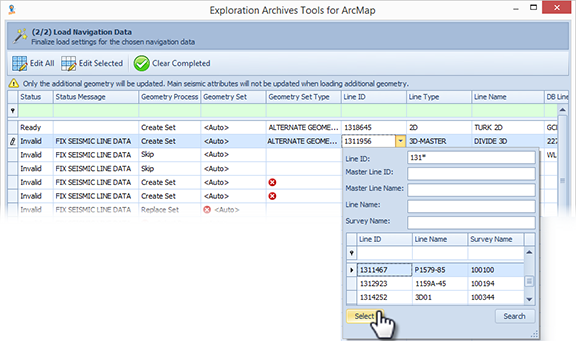
To search for the seismic ID:
-
Click the down arrow in the Seismic ID cell to open the Search panel.
-
Enter the search criteria and click Search.
-
In the results panel, double-click the item that requires the points to be replaced.
The main seismic attributes do not update when replacing additional geometry.
Using the Replace Set process replaces the additional geometry set in Exploration Archives.
With the Replace Set process, Tools for ArcMap uses Seismic Name, or Seismic Name and Survey Name to match the existing seismic in Exploration Archives. If this information is not in the original input file, use the search function. Refer to the Feature Attribute Mapping information in Set the loading options to verify the mapping.
In the Tools for ArcMap grid, the Seismic ID and Seismic Type populate automatically when you select Replace Points as the process. These fields auto-populate only if the seismic already exists in the database, and if only one match is detected. If the seismic exists in Exploration Archives and the ID does not populate, use the search function to find the seismic.
To search for the seismic ID:
-
Click the down arrow in the Seismic ID cell to open the Search panel.
-
Enter the search criteria and click Search.
-
In the results panel, double-click the item that requires the points to be replaced.